---
title: Monorepo Support
description: Keep documentation alongside your code. Jamdesk supports monorepos and any repository where docs aren't at the root.
---
> **For AI agents:** the complete documentation index is at [llms.txt](/docs/llms.txt). Append `.md` to any page URL for its markdown version.
If your `docs.json` lives in a subdirectory -- `docs/`, `packages/docs/`, or anywhere else -- toggle on monorepo mode in project settings and specify the path. Jamdesk will scope builds to that directory and ignore everything outside it.
**Prerequisites:** You need a [Jamdesk project](/setup/creating-projects) connected to a [GitHub repository](/setup/connecting-github) before configuring monorepo support.
## How Jamdesk Scopes Your Build
```mermaid
flowchart LR
subgraph repo["Your Monorepo"]
A["apps/"]
B["packages/"]
C["docs/"]
end
subgraph build["Jamdesk Build"]
D["docs.json"]
E["MDX files"]
F["images/"]
end
C -->|"docs path: /docs"| build
A -.->|ignored| X["Not included"]
B -.->|ignored| X
```
## Quick Setup
Go to your project in the [Jamdesk dashboard](https://dashboard.jamdesk.com) and navigate to **Settings**.
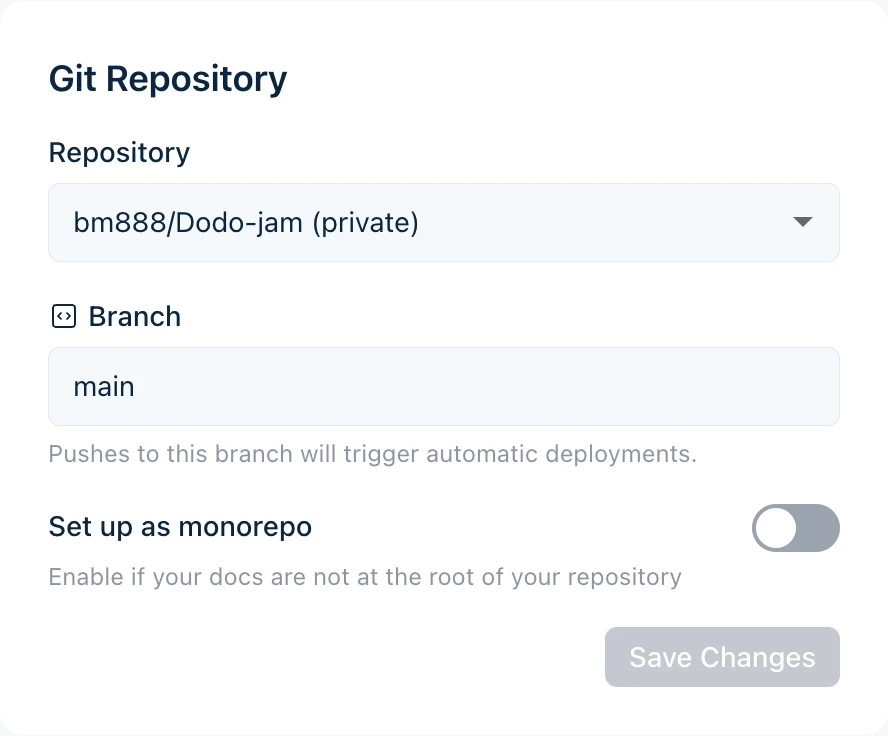
Under the **Git Repository** section, toggle on **Set up as monorepo**.
 Specify the path to the directory containing your `docs.json` file.
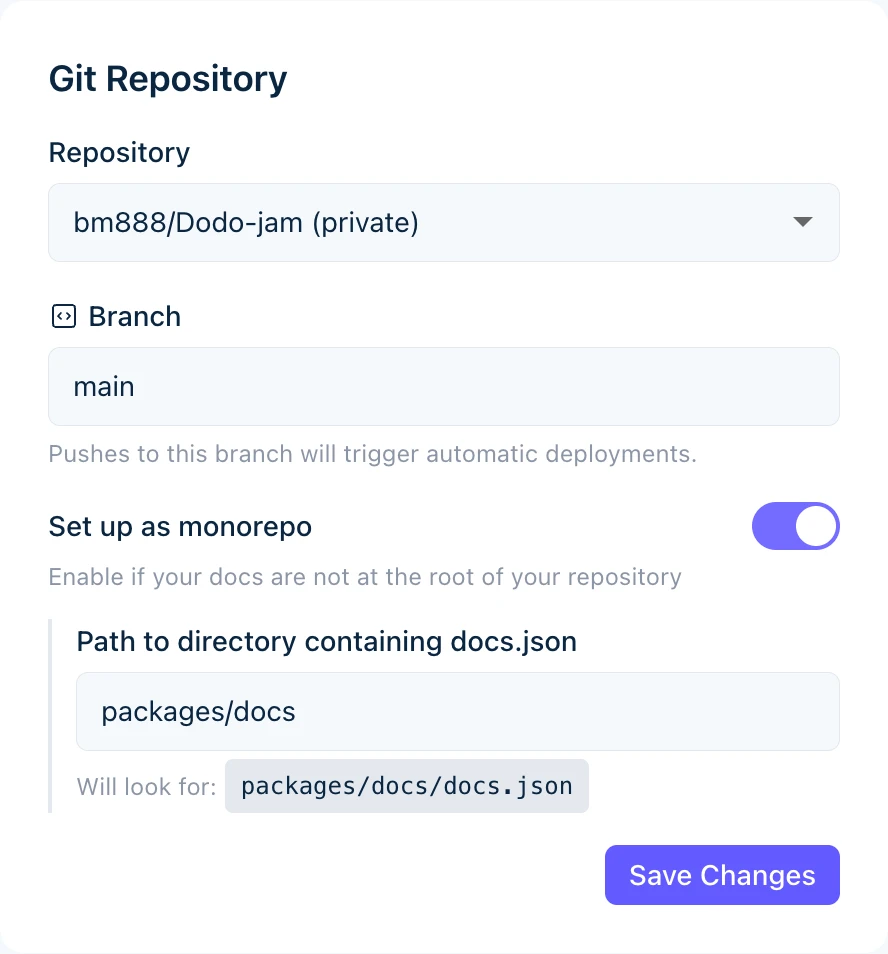 The preview shows where Jamdesk will look for your configuration file.
Click **Save Changes** to apply. Your next build will use the new path.
## Understanding the Docs Path
The docs path tells Jamdesk where to find your `docs.json` configuration file within the repository.
Enter only the directory path, not the filename. Use `docs` not `docs/docs.json`.
### Path Examples
| Repository Structure | Docs Path Value |
|---------------------|-----------------|
| `my-repo/docs/docs.json` | `docs` |
| `my-repo/packages/docs/docs.json` | `packages/docs` |
| `my-repo/apps/website/docs/docs.json` | `apps/website/docs` |
| `my-repo/documentation/docs.json` | `documentation` |
### What Gets Included
When you set a docs path, Jamdesk only processes files within that directory:
- **Content files** (`.mdx`, `.md`) are compiled into pages
- **Assets** in subdirectories (like `images/`) are included
- **Configuration** (`docs.json`) defines your site
Files outside the docs path are ignored during builds.
## Common Monorepo Patterns
Choose the pattern that matches your project structure:
Documentation in a top-level directory.
```bash
monorepo/
├── packages/
├── apps/
└── docs/ # Docs path: docs
├── docs.json
├── introduction.mdx
└── guides/
```
**Docs path:** `docs`
Documentation as a workspace package.
```bash
monorepo/
├── packages/
│ ├── core/
│ ├── cli/
│ └── docs/ # Docs path: packages/docs
│ ├── docs.json
│ └── pages/
└── apps/
```
**Docs path:** `packages/docs`
Documentation nested within an application.
```bash
monorepo/
├── apps/
│ └── website/
│ ├── src/
│ └── docs/ # Docs path: apps/website/docs
│ ├── docs.json
│ └── introduction.mdx
└── packages/
```
**Docs path:** `apps/website/docs`
Any custom directory name.
```bash
monorepo/
├── src/
├── tests/
└── documentation/ # Docs path: documentation
├── docs.json
└── getting-started.mdx
```
**Docs path:** `documentation`
## Working with Assets
Asset paths in `docs.json` are always relative to your docs directory, not the repository root.
### Example
If your docs are in `packages/docs/`:
```json packages/docs/docs.json
{
"logo": {
"light": "/images/logo.svg"
},
"favicon": "/images/favicon.svg"
}
```
These paths reference:
- `packages/docs/images/logo.svg`
- `packages/docs/images/favicon.svg`
Do not use absolute paths from the repository root. This will not work:
```json
"favicon": "/packages/docs/images/favicon.svg"
```
### In MDX Files
The same rule applies to images in your content:
```mdx
```
This references an image at `[docs-path]/images/tabs-preview.png`.
## Internal Links
Internal links work the same regardless of your repository structure. Use paths relative to your docs root:
```mdx
[See the quickstart guide](/quickstart)
[Installation steps](/quickstart#installation)
```
These paths match your navigation structure, not your file system.
## Build Behavior
Jamdesk only watches for changes within your configured docs path:
- Changes to `packages/docs/**` trigger a build
- Changes to `packages/core/**` do not trigger a build
This keeps builds fast and focused on documentation changes.
**Need to rebuild when other code changes?**
If you generate documentation from source code (like API docs from code comments), trigger a manual rebuild from the dashboard or set up a webhook in your CI pipeline.
## Workspace Tools Compatibility
Jamdesk works with all major monorepo tools. No special configuration is needed beyond setting the docs path.
| Tool | Supported |
|------|-----------|
| npm workspaces | Yes |
| Yarn workspaces | Yes |
| pnpm workspaces | Yes |
| Turborepo | Yes |
| Nx | Yes |
| Lerna | Yes |
## Troubleshooting
1. Verify the exact path in your repository matches what you entered
2. Ensure `docs.json` exists at that location
3. Check for typos - paths are case-sensitive
4. Remember: use `docs` not `docs/docs.json`
**Quick check:** In your repository, the file should exist at `[your-docs-path]/docs.json`
Asset paths must be relative to your docs directory.
**Correct** - relative to docs directory:
```json
"favicon": "/images/favicon.svg"
```
**Wrong** - absolute from repo root:
```json
"favicon": "/packages/docs/images/favicon.svg"
```
Check that your images actually exist in `[docs-path]/images/`.
Only changes within your configured docs path trigger automatic builds.
1. Verify you're modifying files inside the docs path
2. Check that you're pushing to the correct branch
3. View webhook delivery status in GitHub repository settings
If you need builds triggered by changes outside the docs path, use manual rebuilds or CI webhooks.
## What's Next?
Link your repository for automatic builds
Organize your docs for scale
The preview shows where Jamdesk will look for your configuration file.
Click **Save Changes** to apply. Your next build will use the new path.
## Understanding the Docs Path
The docs path tells Jamdesk where to find your `docs.json` configuration file within the repository.
Enter only the directory path, not the filename. Use `docs` not `docs/docs.json`.
### Path Examples
| Repository Structure | Docs Path Value |
|---------------------|-----------------|
| `my-repo/docs/docs.json` | `docs` |
| `my-repo/packages/docs/docs.json` | `packages/docs` |
| `my-repo/apps/website/docs/docs.json` | `apps/website/docs` |
| `my-repo/documentation/docs.json` | `documentation` |
### What Gets Included
When you set a docs path, Jamdesk only processes files within that directory:
- **Content files** (`.mdx`, `.md`) are compiled into pages
- **Assets** in subdirectories (like `images/`) are included
- **Configuration** (`docs.json`) defines your site
Files outside the docs path are ignored during builds.
## Common Monorepo Patterns
Choose the pattern that matches your project structure:
Documentation in a top-level directory.
```bash
monorepo/
├── packages/
├── apps/
└── docs/ # Docs path: docs
├── docs.json
├── introduction.mdx
└── guides/
```
**Docs path:** `docs`
Documentation as a workspace package.
```bash
monorepo/
├── packages/
│ ├── core/
│ ├── cli/
│ └── docs/ # Docs path: packages/docs
│ ├── docs.json
│ └── pages/
└── apps/
```
**Docs path:** `packages/docs`
Documentation nested within an application.
```bash
monorepo/
├── apps/
│ └── website/
│ ├── src/
│ └── docs/ # Docs path: apps/website/docs
│ ├── docs.json
│ └── introduction.mdx
└── packages/
```
**Docs path:** `apps/website/docs`
Any custom directory name.
```bash
monorepo/
├── src/
├── tests/
└── documentation/ # Docs path: documentation
├── docs.json
└── getting-started.mdx
```
**Docs path:** `documentation`
## Working with Assets
Asset paths in `docs.json` are always relative to your docs directory, not the repository root.
### Example
If your docs are in `packages/docs/`:
```json packages/docs/docs.json
{
"logo": {
"light": "/images/logo.svg"
},
"favicon": "/images/favicon.svg"
}
```
These paths reference:
- `packages/docs/images/logo.svg`
- `packages/docs/images/favicon.svg`
Do not use absolute paths from the repository root. This will not work:
```json
"favicon": "/packages/docs/images/favicon.svg"
```
### In MDX Files
The same rule applies to images in your content:
```mdx

```
This references an image at `[docs-path]/images/tabs-preview.png`.
## Internal Links
Internal links work the same regardless of your repository structure. Use paths relative to your docs root:
```mdx
[See the quickstart guide](/quickstart)
[Installation steps](/quickstart#installation)
```
These paths match your navigation structure, not your file system.
## Build Behavior
Jamdesk only watches for changes within your configured docs path:
- Changes to `packages/docs/**` trigger a build
- Changes to `packages/core/**` do not trigger a build
This keeps builds fast and focused on documentation changes.
**Need to rebuild when other code changes?**
If you generate documentation from source code (like API docs from code comments), trigger a manual rebuild from the dashboard or set up a webhook in your CI pipeline.
## Workspace Tools Compatibility
Jamdesk works with all major monorepo tools. No special configuration is needed beyond setting the docs path.
| Tool | Supported |
|------|-----------|
| npm workspaces | Yes |
| Yarn workspaces | Yes |
| pnpm workspaces | Yes |
| Turborepo | Yes |
| Nx | Yes |
| Lerna | Yes |
## Troubleshooting
1. Verify the exact path in your repository matches what you entered
2. Ensure `docs.json` exists at that location
3. Check for typos - paths are case-sensitive
4. Remember: use `docs` not `docs/docs.json`
**Quick check:** In your repository, the file should exist at `[your-docs-path]/docs.json`
Asset paths must be relative to your docs directory.
**Correct** - relative to docs directory:
```json
"favicon": "/images/favicon.svg"
```
**Wrong** - absolute from repo root:
```json
"favicon": "/packages/docs/images/favicon.svg"
```
Check that your images actually exist in `[docs-path]/images/`.
Only changes within your configured docs path trigger automatic builds.
1. Verify you're modifying files inside the docs path
2. Check that you're pushing to the correct branch
3. View webhook delivery status in GitHub repository settings
If you need builds triggered by changes outside the docs path, use manual rebuilds or CI webhooks.
## What's Next?
Link your repository for automatic builds
Organize your docs for scale