
Custom CSS and JavaScript Examples
Give the header your own logo and colors and add a floating Ask AI button, using CSS and JavaScript that keep working after Jamdesk updates.
This page builds one example on a demo site called Harbor. The header gets Harbor's logo, colors and two extra links, and a floating Ask AI button sits in the bottom-right corner. You can copy the files as they are, then put in your own logo and colors.
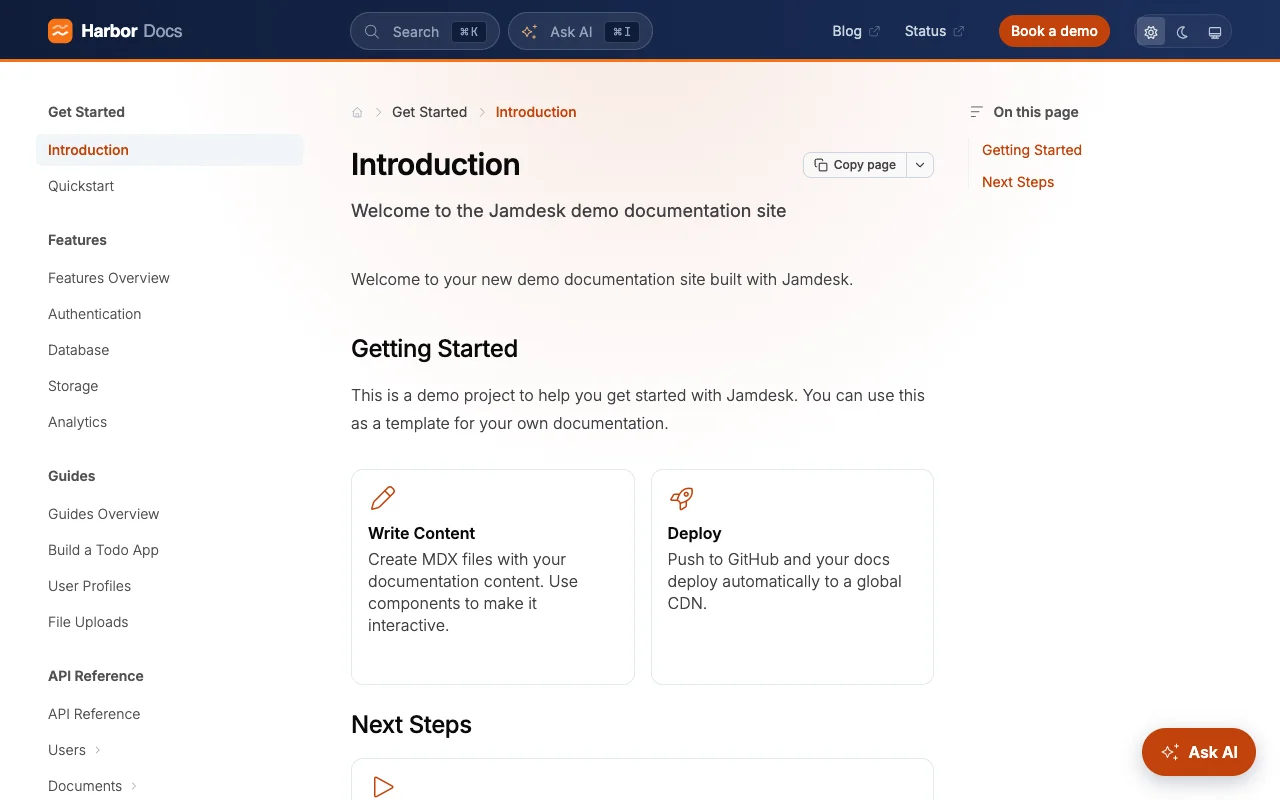
What's Different About This Header
Out of the box, the Jam header blends into the page. In light mode it's see-through and shows the soft gradient behind it, and in dark mode it's the same near-black as everything else. Its buttons have slightly rounded corners. The Harbor version changes four things:
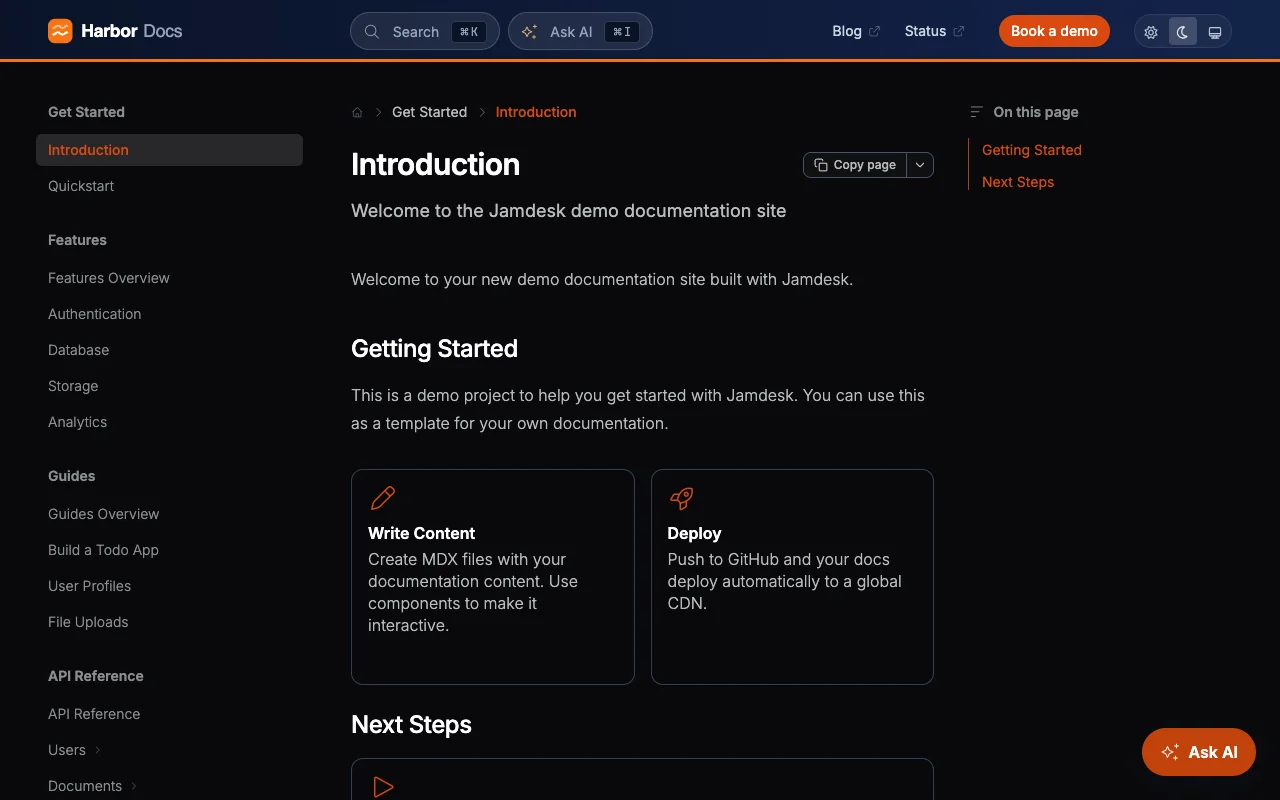
- It's a navy bar in both light and dark mode, so it stands out from the page.
- A thin orange line runs along the bottom edge.
- The search box, Ask AI and Book a demo are fully rounded pills.
- Harbor's white logo replaces the default one.
The changes are CSS and one logo file. Jamdesk's header itself isn't changed, so search, Ask AI, the theme switch and the mobile menu work as before.
The example uses these files in your project:
harbor-docs/
├── docs.json              ← logo, header links and brand colors
├── style.css              ← header and button styles
├── script.js              ← creates the Ask AI button
└── images/
    └── harbor-logo.svg    ← white logo for the navy header
Start With docs.json
The first part needs no code. The logo, colors, header links and the Book a demo button all go in docs.json:
{
  "logo": {
    "light": "/images/harbor-logo.svg",
    "dark": "/images/harbor-logo.svg"
  },
  "colors": {
    "primary": "#C2410C",
    "light": "#D9480F",
    "dark": "#9A3412"
  },
  "navbar": {
    "links": [
      { "label": "Blog", "href": "https://example.com/blog" },
      { "label": "Status", "href": "https://example.com/status" }
    ],
    "primary": {
      "type": "button",
      "label": "Book a demo",
      "href": "https://example.com/demo"
    }
  }
}
The logo is white. Because the header is navy in both light and dark mode, one file works for both.
Jamdesk uses your primary color for the Book a demo button, the active sidebar item and links, so the orange shows up across the site. Dark mode uses the light color instead. Keep it dark enough that white text on the button is still easy to read. See Navigation Links for all the navbar options.
Navbar links show on tablet and desktop widths in themes that put the logo in the header (Jam, Nebula, Halo and Dusk). Pulsar puts the logo in the sidebar and has no header bar on desktop, so the header styles below won't show there.
Style the Header
The header's text, borders, search box and corner rounding all come from CSS variables. If you set those variables inside the header, only the header changes:
/* header[data-has-tabs] matches the site header only.
   A plain `header` selector would also match the title
   block at the top of every page. */
header[data-has-tabs] {
  --header-top: #0f1d3a;
  --header-bottom: #1b2f5b;
  --header-stripe: #f97316;
  --color-text-primary: #ffffff;
  --color-text-secondary: #cbd5e1;
  --color-text-tertiary: #cbd5e1;
  --color-text-muted: #94a3b8;
  --color-bg-primary: #0f1d3a;
  --color-bg-secondary: rgba(255, 255, 255, 0.08);
  --color-bg-hover: rgba(255, 255, 255, 0.16);
  --color-border: rgba(255, 255, 255, 0.16);
  /* Rounds the search box, Ask AI and buttons into pills */
  --radius-md: 999px;
  --radius-lg: 999px;
}

html.dark header[data-has-tabs] {
  --header-top: #0a1328;
  --header-bottom: #13234a;
  --color-bg-primary: #0a1328;
}

/* Some themes keep the header background transparent on
   purpose, so paint the color on a layer behind it. */
header[data-has-tabs]::before {
  content: "";
  position: absolute;
  inset: 0 -24px; /* reach past the 16-24px page gutter */
  z-index: -1;
  background: linear-gradient(
    90deg, var(--header-top), var(--header-bottom)
  );
  border-bottom: 3px solid var(--header-stripe);
}

/* The sparkle icon uses the accent color, which is hard to
   see on navy, so give it the stripe color instead */
header[data-has-tabs] .fa-sparkles {
  color: #fdba74;
}
The navy goes on a ::before layer because the Jam theme sets the header's background to none with !important. A normal background rule on the header would lose. The layer sits behind the header's contents and works in every theme.
Setting --radius-md and --radius-lg to 999px turns the header's buttons into pills. The change is inside header[data-has-tabs], so cards and code blocks on the page keep their usual corners.
The Ask AI icon in the header uses your accent color, which is hard to see on navy. The last rule makes it light orange.
Jamdesk adds the dark class to <html> in dark mode, so the html.dark block makes the navy a little darker there:
Add a Floating Ask AI Button
Your script adds a normal <button> to the page. Clicking it sends Ctrl+I, the keyboard shortcut that opens and closes the chat panel, so it does the same thing as the Ask AI button in the header.
(function () {
  if (document.getElementById('ask-ai-fab')) return;

  var button = document.createElement('button');
  button.id = 'ask-ai-fab';
  button.type = 'button';

  // Jamdesk loads Font Awesome, so its icons are available here
  var icon = document.createElement('i');
  icon.className = 'fa-solid fa-sparkles';
  icon.setAttribute('aria-hidden', 'true');
  button.append(icon, ' Ask AI');

  button.addEventListener('click', function () {
    // Same as pressing Ctrl+I / Cmd+I: toggles the chat panel
    var shortcut = { key: 'i', ctrlKey: true, bubbles: true };
    document.dispatchEvent(new KeyboardEvent('keydown', shortcut));
  });

  document.body.appendChild(button);
})();
Then add the button styles to style.css:
#ask-ai-fab {
  position: fixed;
  right: 24px;
  bottom: 24px;
  z-index: 40; /* below the header, search and mobile menu */
  display: inline-flex;
  align-items: center;
  gap: 8px;
  padding: 12px 18px;
  border: 0;
  border-radius: 999px;
  background: #c2410c;
  color: #fff;
  font: inherit;
  font-weight: 600;
  box-shadow: 0 6px 20px rgba(15, 29, 58, 0.25);
  cursor: pointer;
}

#ask-ai-fab:hover {
  background: #9a3412;
}

#ask-ai-fab:focus-visible {
  outline: 2px solid #f97316;
  outline-offset: 2px;
}

/* Hide the button while the chat panel is open. On mobile
   the closed panel stays in the page with data-open="false",
   so exclude that case. */
body:has([data-chat-panel]:not([data-open="false"])) #ask-ai-fab {
  display: none;
}

@media (max-width: 767px) {
  #ask-ai-fab {
    right: 16px;
    bottom: 16px;
  }
}
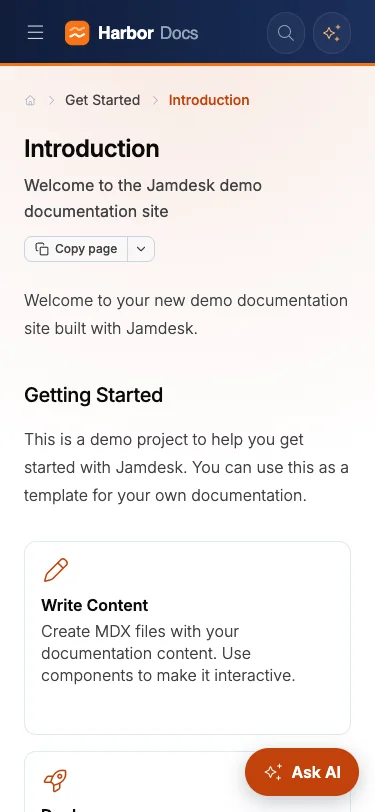
On a phone the button sits 16px from the edges. When the chat opens, it covers most of the screen and the button hides until it closes:
The button needs AI chat to be on. If chat.enabled is false in docs.json, clicking it does nothing, so leave it out.
If you also use a support widget such as Crisp or Intercom, it probably sits in the bottom-right corner too. To keep them apart, use left: 24px instead of right on #ask-ai-fab, or raise bottom so the button sits above the widget.
Run Code After Each Page Change
Your script runs once, when a visitor first opens the site. After that, clicking a link in the docs swaps the page content without reloading, so the script doesn't run again. The Ask AI button isn't affected because it's attached to <body>, which stays in place.
If your code reads or changes the page content, it needs to know when the page changes. This snippet watches the main column and checks whether the URL has changed. Put it in the same script.js, below the button code:
(function () {
  var lastPath = location.pathname;
  var main = document.getElementById('main-content') || document.body;

  function onPageChange() {
    // Your per-page code goes here
    console.log('Now on', location.pathname);
  }

  new MutationObserver(function () {
    if (location.pathname === lastPath) return;
    lastPath = location.pathname;
    onPageChange();
  }).observe(main, { childList: true, subtree: true });
})();
onPageChange runs once per new page, whether the visitor clicked a sidebar link, used search or pressed the back button.
Selectors to Use
Jamdesk's class names come from Tailwind and can change in any release. Button labels change too, because they're translated on multilingual sites. Use these selectors instead:
| Selector | Matches |
|---|---|
html.dark | The page while dark mode is on |
body[data-theme="jam"] | The active theme, by name (jam, nebula, pulsar, halo, dusk) |
header[data-has-tabs] | The site header |
#main-content | The main column, including the page and its table of contents |
#content-scroll-container | The page content column |
article .prose | The body text of the current page |
[data-chat-panel] | The AI chat panel |
[data-theme-toggle] | The light/dark/system switch |
body[data-jd-ready="true"] | Set once the first page has finished loading |
Don't move Jamdesk's own elements into other containers or hide them with scripts. Jamdesk redraws parts of the page as visitors click around, so a moved element can jump back or break navigation. Add your own elements next to Jamdesk's instead, like the Ask AI button does.
Testing Your Changes
jamdesk dev shows your CSS but doesn't run custom JavaScript, and AI chat only works on your published site. To try the script locally, paste it into your browser's console on the preview page. The button will appear, but it won't open the chat until you publish.
Check the result on a phone-sized screen (375px wide) and in dark mode, not just on desktop. That's where header colors and fixed buttons usually break.