
Theming
Choose a built-in theme (Jam, Nebula, Pulsar, Halo, or Dusk) to control typography, layout, spacing, and dark mode. Override colors to match your brand.
Set theme in docs.json to control layout, typography, spacing, and dark mode behavior. Five themes are available: jam (default), nebula, pulsar, halo, and dusk.
{
  "theme": "jam"
}
Try each theme on these docs before you choose. Pick one under Preview a theme at the top of the sidebar. On mobile, open the navigation menu. The preview lasts until you close your browser.
Available Themes
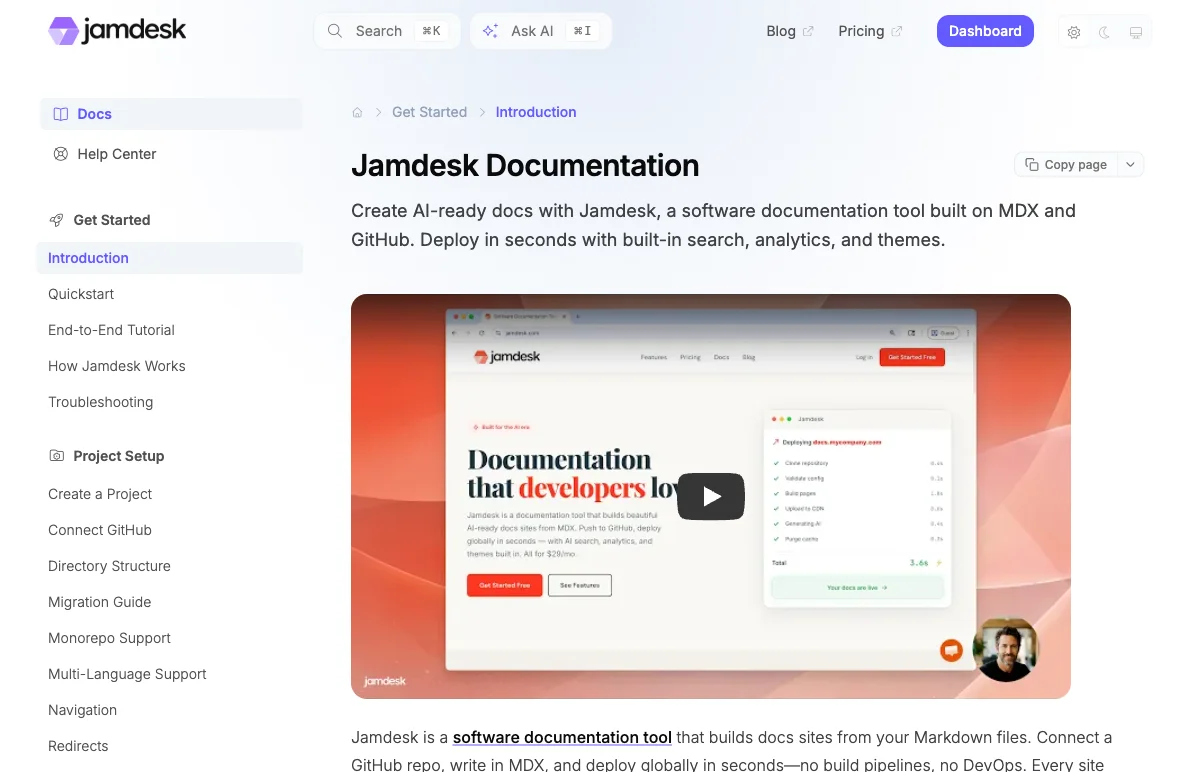
The default theme. Header-logo layout with a radial gradient background derived from your primary color. Rounded borders (6-24px).
{
  "theme": "jam"
}
Typography
Each theme bundles fonts loaded from Google Fonts:
| Theme | Headings | Body | Code |
|---|---|---|---|
| Jam | Inter | Inter | JetBrains Mono |
| Nebula | IBM Plex Mono | IBM Plex Mono | IBM Plex Mono |
| Pulsar | Inter | Inter | JetBrains Mono |
| Halo | Figtree | Figtree | JetBrains Mono |
| Dusk | IBM Plex Serif | Inter | JetBrains Mono |
The defaults are tuned to each theme. Set fonts in docs.json to swap the whole site to a Google Font:
{
  "fonts": {
    "family": "Lora"
  }
}
Use separate fonts for headings and body:
{
  "fonts": {
    "heading": { "family": "Space Grotesk" },
    "body": { "family": "Inter" }
  }
}
Any Google Font works. Set only family to have the build fetch it. Self-host a custom font by adding source (URL or /-relative path) and format:
{
  "fonts": {
    "family": "AcmeSans",
    "source": "/fonts/acme-sans.woff2",
    "format": "woff2"
  }
}
Set weight for a lighter or heavier body, for example with a delicate geometric font like Geist:
{
  "fonts": {
    "family": "Geist",
    "weight": 200
  }
}
weight sets the body text weight only. Headings keep each theme's heavier weights. It works in the body form too: "body": { "family": "Geist", "weight": 200 }.
Use Custom CSS for anything beyond the fonts field: overriding code fonts, tweaking weights per heading level, or loading non-Google webfonts.
Custom Colors
Override the default palette with your brand colors:
{
  "theme": "jam",
  "colors": {
    "primary": "#635BFF",
    "light": "#7C75FF",
    "dark": "#4F46E5"
  }
}| Color | Usage |
|---|---|
primary | Links, buttons, accents |
light | Hover states, highlights |
dark | Active states, dark mode accents |
Colors take effect after your next build. Restart the dev server to see changes locally.
Use a color tool like Coolors or Realtime Colors to generate a harmonious palette.
Need more than colors? Override page colors, spacing, border radii, callout styles, and component-level details with Custom CSS.
Dark Mode
Every theme includes dark mode. By default Jamdesk follows the visitor's system preference and shows a toggle in the navbar. Your color palette adapts on its own.
Pin the site to a specific mode with appearance in docs.json:
{
  "appearance": {
    "default": "dark",
    "strict": true
  }
}| Field | Values | Default | Description |
|---|---|---|---|
default | "system" | "light" | "dark" | "system" | Initial mode for first-time visitors |
strict | boolean | false | true hides the navbar toggle and keeps visitors on default |
Set default alone to suggest a starting mode. Visitors can still switch. Add strict: true to remove the toggle and lock the site to that mode.
Test dark mode during development with the navbar toggle, or emulate it in DevTools:
- Open DevTools
- Press Cmd+Shift+P (Mac) or Ctrl+Shift+P (Windows)
- Search for "Emulate CSS prefers-color-scheme: dark"
Use Custom CSS for fine-grained control over dark mode styles.