
AI Actions Menu
A dropdown on every page that lets readers copy Markdown, open pages in ChatGPT/Claude/Perplexity, or install your MCP server in one click.
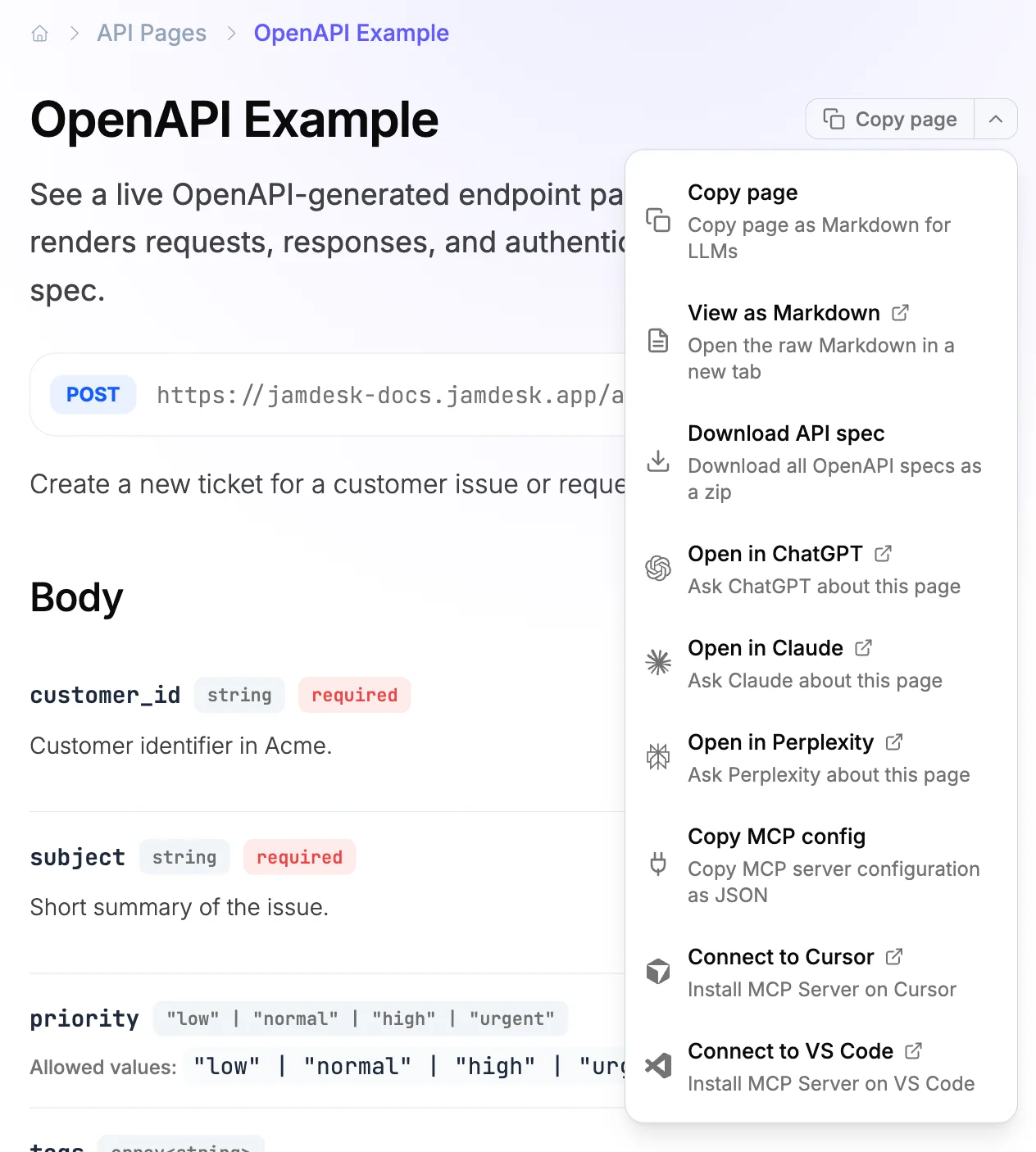
Every page on your Jamdesk site has an AI Actions menu, a small dropdown above the title. Readers can copy the page as Markdown, open it in ChatGPT, or install your MCP server in Cursor. No configuration needed.
Built-in Options
The menu ships with eight options, on by default:
| Option | Key | What it does |
|---|---|---|
| Copy page | copy | Fetches the raw Markdown and copies it to the clipboard |
| View as Markdown | view | Opens the .md file in a new tab |
| Open in ChatGPT | chatgpt | Opens ChatGPT with a prompt to read the current page |
| Open in Claude | claude | Opens Claude with the same prompt |
| Open in Perplexity | perplexity | Opens Perplexity with the same prompt |
| Copy MCP config | mcp | Copies the JSON config for your site's MCP server |
| Add to Cursor | cursor | Deep-links to install the MCP server in Cursor |
| Add to VS Code | vscode | Deep-links to install the MCP server in VS Code |
Gemini is also available as gemini. It isn't in the defaults because it doesn't reliably pre-fill prompts from a URL. Add it explicitly if your readers use it.
copy becomes the primary button when it is in the options list. The rest appear in a dropdown behind a chevron. Without copy, the menu collapses into one "AI Actions" dropdown.
Download API spec
API reference pages get one more item: Download API spec. It bundles every OpenAPI spec your site references into one api-specs.zip, including remote spec URLs. Hand the zip to Postman, a client generator, or your own tooling. Multi-file specs keep their folder layout inside the zip. $ref links between files still resolve.
There's nothing to configure. The item shows only on pages backed by an OpenAPI spec. Jamdesk builds the zip fresh on each download. It always matches your current specs.
Configuration
Edit docs.json only to change which options appear or to turn the menu off.
Show a subset of options
{
  "contextual": {
    "options": ["copy", "claude", "mcp"]
  }
}
Disable the menu
{
  "contextual": {
    "enabled": false
  }
}
Add custom options
Mix built-in options with your own. A custom option opens its URL in a new tab.
{
  "contextual": {
    "options": [
      "copy",
      "claude",
      {
        "title": "Ask on Discord",
        "description": "Get help from the community",
        "icon": "discord",
        "href": "https://discord.gg/your-server"
      }
    ]
  }
}
Custom options take an optional icon field. Any Font Awesome icon name works, including brand icons like discord or slack. Options without an icon show a link icon.
Custom options also take query parameters:
{
  "contextual": {
    "options": [
      "copy",
      {
        "title": "Search in Notion",
        "description": "Find related internal docs",
        "href": {
          "base": "https://notion.so/search",
          "query": [
            { "key": "q", "value": "docs" }
          ]
        }
      }
    ]
  }
}
How It Works
The menu runs client-side. Its URLs update on every page navigation, including sidebar navigation without a full page reload. The "Open in Claude" link always points to the current page.
The AI service links put the page's .md URL in the prompt. ChatGPT, Claude, and Perplexity fetch the page from that link.
MCP options use the /_mcp endpoint on every Jamdesk site. "Copy MCP config" copies the JSON for any MCP client. "Add to Cursor" and "Add to VS Code" are deep links that open the editor's install flow. See MCP Server for what AI tools can do with it.