Email Signups
Connect Resend, Mailchimp, Kit, Loops, beehiiv, Brevo, or SendGrid to collect email signups from your docs straight into your own provider's audience.
Jamdesk collects email addresses from your documentation site. It adds them to the email provider you already use. No third-party form service sits in between. Connect a provider once in the dashboard. Then add a signup form to any page. You own the list and the sending. Jamdesk captures the address and passes it to your provider.
Prerequisites
- An account with one of the supported providers
- An API key from that provider with permission to add contacts
- The audience identifier most providers use to pick a list (Audience ID, List ID, Form ID, or Publication ID)
How capture works
Jamdesk validates the API key against the provider's API before saving it. Every form submission on your docs site then calls the provider and adds the reader to your audience. Submissions are rate-limited per visitor and per project. A hidden honeypot field filters out bots.
Readers see a form like this:
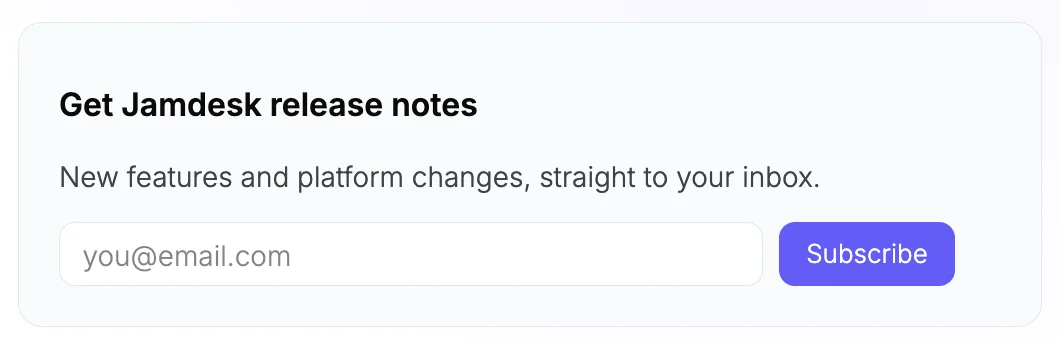
You can see one live on the Jamdesk changelog.
Your API key is stored on Jamdesk's backend and used only to add contacts. It is never written into your published site, your docs.json, or any client-side code.
Supported providers
Seven providers capture signups natively. Readers submit a Jamdesk-hosted form and land in your audience without leaving your docs:
| Provider | What you connect |
|---|---|
| Resend | API key (full-access) + Audience ID |
| Mailchimp | API key (ends in your datacenter, e.g. -us21) + Audience (List) ID |
| Kit (ConvertKit) | v4 API key + Form ID |
| Loops | API key |
| beehiiv | API key + Publication ID |
| Brevo | v3 API key + Contact List ID |
| SendGrid | API key with Marketing Contacts write access + Marketing List ID |
Two more providers are embed-only. Jamdesk renders their own form or iframe instead of capturing the address. No key is needed:
| Provider | What you supply |
|---|---|
| Buttondown | Your account username (on the <EmailSubscribe> tag) |
| Substack | Your account username (on the <EmailSubscribe> tag) |
See EmailSubscribe for the embed-only setup.
Connect a provider
In the dashboard, open your project and go to Integrations. Find the Email Signups card.
Pick a provider from the Provider dropdown. The form then asks for the fields that provider needs. It links to where you find the API key.
Enter the API key and, for most providers, the audience identifier (Loops needs only the key). The key field is masked.
Click Connect. Jamdesk validates the key with your provider before saving. A wrong key, or one without contact permissions, shows an error. Nothing is stored.
The connected card shows a Configured badge with your provider and audience ID. New publishes of your docs render live capture forms.
Customize the form copy
The optional Form title and Form subtitle fields set the heading and supporting line on auto-placed forms. Blank fields leave the form with only the email field and button. Changelog forms pick up filled fields on the next publish, with no docs.json edit.
Change this copy any time. Edit the fields on a connected card and click Save copy. You don't re-enter your API key. A title or description set in docs.json or on an <EmailSubscribe> tag overrides the dashboard copy.
Add a form to your docs
Connecting a provider doesn't place a form by itself. You choose where signups appear:
- Write
<EmailSubscribe provider="resend" />(using your connected provider's id) on any page. - Or set
placement: changelogindocs.jsonto auto-place a form on every changelog page.
The EmailSubscribe component page covers these options.
Disconnect a provider
Open the Email Signups card and click Remove to stop collecting signups. Forms stop capturing on your next publish.
Disconnecting removes the key from Jamdesk only. Subscribers you already collected stay in your provider's audience. Jamdesk never deletes them. You can reconnect at any time.