
Fix with AI
Review and apply AI-suggested fixes for broken links and missing page descriptions from your Jamdesk build dashboard, committed to GitHub for you.
When a build finishes with broken links or pages that have no description, Jamdesk can repair many of them for you. The Fix with AI button reads those build warnings, proposes a concrete edit for each one, and commits the fixes you approve to your connected GitHub repository, which starts a fresh build. This page is for anyone maintaining a Jamdesk site who wants to clear build warnings without editing MDX by hand.
For a local, terminal-based version of the same idea, see the jamdesk fix CLI command. The dashboard flow below commits for you; the CLI writes to your working copy and leaves the commit to you.
What it fixes
Fix with AI works on three kinds of build warning:
- Broken internal links. A link fragment that points at a heading which no longer exists on the target page, such as a typo (
#instalation→#installation), or a translated page whose heading was renamed. - Missing page descriptions. A page with no
descriptionin its frontmatter. Jamdesk writes a short summary from the page content for you to review. - Missing page titles. A page with no title gets a suggested one, drawn from the page content, for you to review.
It only proposes a change when it can resolve the target with confidence. Anything ambiguous is left untouched and listed separately so you can fix it by hand.
The fixable count is not the same as the warning count. A build can show five warnings while Fix with AI offers to repair three of them, because the other two have no unambiguous fix. The banner always reflects what can actually be fixed.
Prerequisites
- A connected GitHub repository for the project.
- Write access for the Jamdesk GitHub App, so it can commit the fixes. If access is missing, the modal shows a Grant access link that takes you to GitHub to add it.
- A completed build that carries broken-link or missing-description warnings.
Find the banner
Open your project and scroll to Build History on the Project Home page. When your latest build has fixable issues, a banner appears above the build list with a count and a Fix with AI button.

The banner only appears on your newest completed build. Older builds in the history don't show it, because fixes always apply to the current state of your docs.
Review and apply the fixes
Click Fix with AI. The modal opens and the AI agent reviews your docs to build a fix plan. This takes a few seconds.
Fixes are grouped by type. Broken links shows each rewritten anchor, Missing descriptions shows the suggested summary for each page, and Missing titles shows the proposed title. Clear the checkbox on anything you would rather skip this time, or use the ignore button to silence a recommendation for good. Issues with no clear fix appear under Can't be fixed automatically and are left for you to handle by hand.
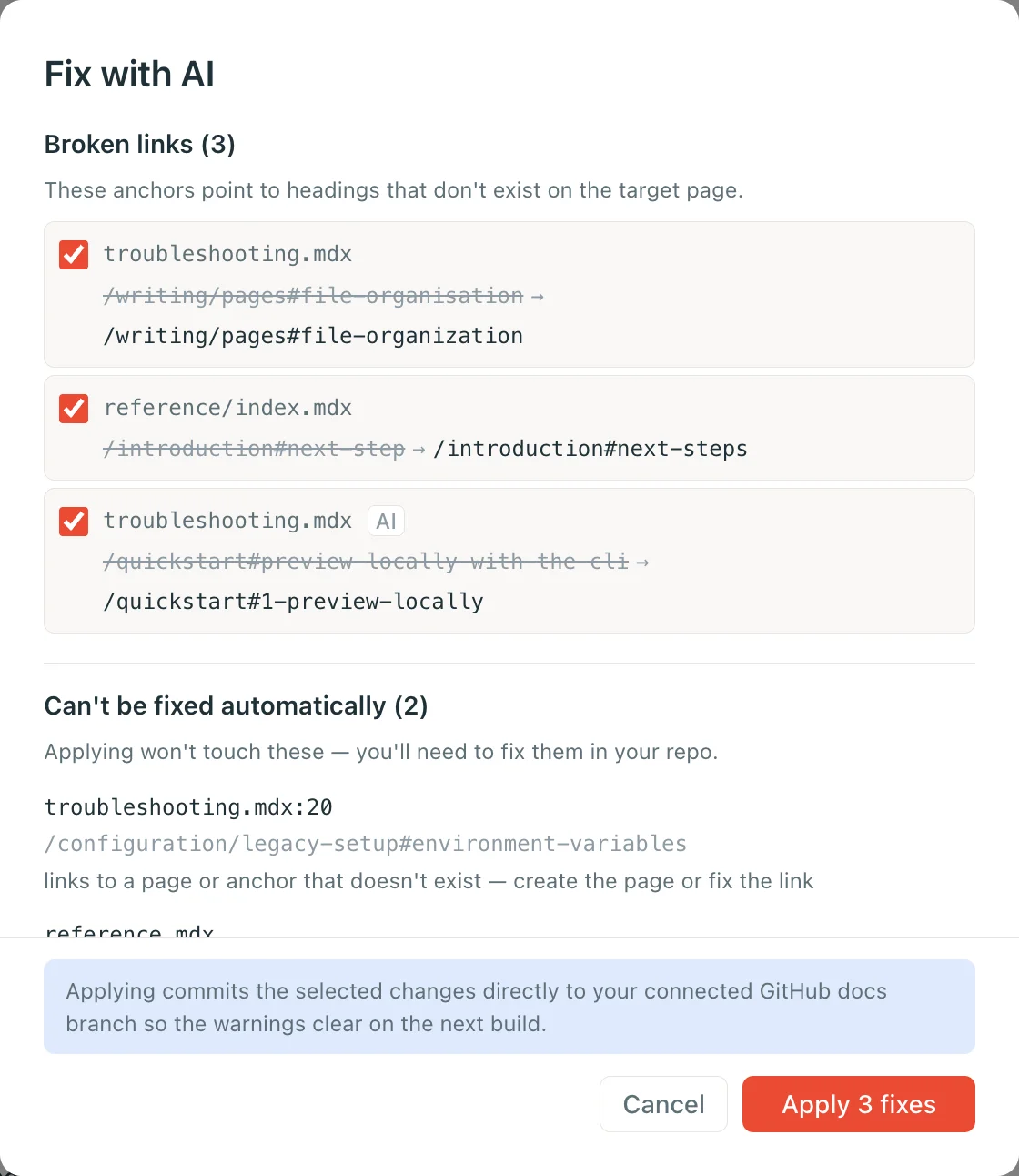
Click Apply fixes. Jamdesk commits the selected changes to your connected branch with the message docs: apply AI-suggested fixes (via Jamdesk) and starts a new build.
Watch the new build in Build History. When it goes live, the fixed warnings are gone. Anything left is either a warning Fix with AI could not resolve or a new issue from the latest content.
Applying writes a real commit to your repository, so the change is tracked in your Git history and you can review or revert it on GitHub like any other commit.
When some issues can't be fixed
If a warning has no clear fix, the modal lists it under a separate heading and leaves it alone. Common reasons:
- A broken link whose target page or heading doesn't exist anywhere, so there's nothing to point it at.
- A navigation entry with no matching source file.
- A page where the agent could not generate a description automatically.
These need a manual edit. Open the page in the editor or your code editor, correct the link or add the description, then push to rebuild.
Ignore recommendations
Some warnings aren't worth acting on: a link you broke on purpose, or a stub page that needs no description. Unchecking a fix only skips it once. Ignoring removes it from the count until you say otherwise.
Every row in the modal, fixable or not, has an ignore button. Click it and the item moves to a collapsed Ignored section at the bottom. Once you close the modal, the banner count on the Project Home page drops to match, and the matching warnings disappear from Build History, on the current build and every build after it. Ignore all does the same for everything still listed.
How ignores behave:
- Shared and persistent. Ignores apply to the whole project, so every member sees the same list, and it carries across builds. Jamdesk matches each warning by its content rather than its line number, so editing other parts of the page won't bring an ignored item back.
- Restoring. Expand the Ignored section and click Restore on any item. If you ignore everything on a build, the banner goes away and a small "N ignored recommendations" link under Build History reopens the modal.
- Changed warnings come back. If the underlying issue changes, say the broken link now points somewhere else, it no longer matches the ignored entry and shows up again as a fresh recommendation.
Fix with AI vs. the CLI
Both tools fix broken-link anchors. They differ in where they run and how the change lands.
| Fix with AI (dashboard) | jamdesk fix (CLI) | |
|---|---|---|
| Runs | In the dashboard, on a build | In your terminal, against local files |
| Fixes | Broken links and missing descriptions | Broken-link anchors |
| Commit | Commits to your branch for you | Writes local files; you commit |
| Trigger | One click on the build banner | jamdesk fix |
Use the dashboard flow for a quick repair without leaving Jamdesk. Use the CLI when you want the changes in your working copy first, for example to bundle them with other edits.