
AI Translation
Turn on the languages you want and Jamdesk translates your documentation after every build, committing the translated pages to your own GitHub repository.
Jamdesk can translate your documentation for you. Pick the languages you want in project settings, and after every build Jamdesk translates your English pages and commits the results to your own GitHub repository, in language-prefixed directories. The translations are yours: they sit in your repo and your Git history, and you can edit them like any other file.
For per-locale navigation and the language switcher, see Multi-Language Support. That configuration applies whether the translations come from Jamdesk, your own translators, or another tool.
Prerequisites
- A connected GitHub repository for the project. Translated pages are committed back to your repo, so a project deployed from the CLI or a tarball can't use this.
- Write access for the Jamdesk GitHub App, so it can make that commit. If access is missing, the Translations panel says so and links a GitHub admin to grant it. It's a one-time step per GitHub account.
Every plan includes automatic translation, trials as well. There's no per-word pricing and no credits to buy.
Turn it on
Go to your project in the Jamdesk dashboard, open Settings, and scroll to Translations.
Switch on Translate my documentation and tick the languages you want. Each one is listed by its native name with the English name beside it.
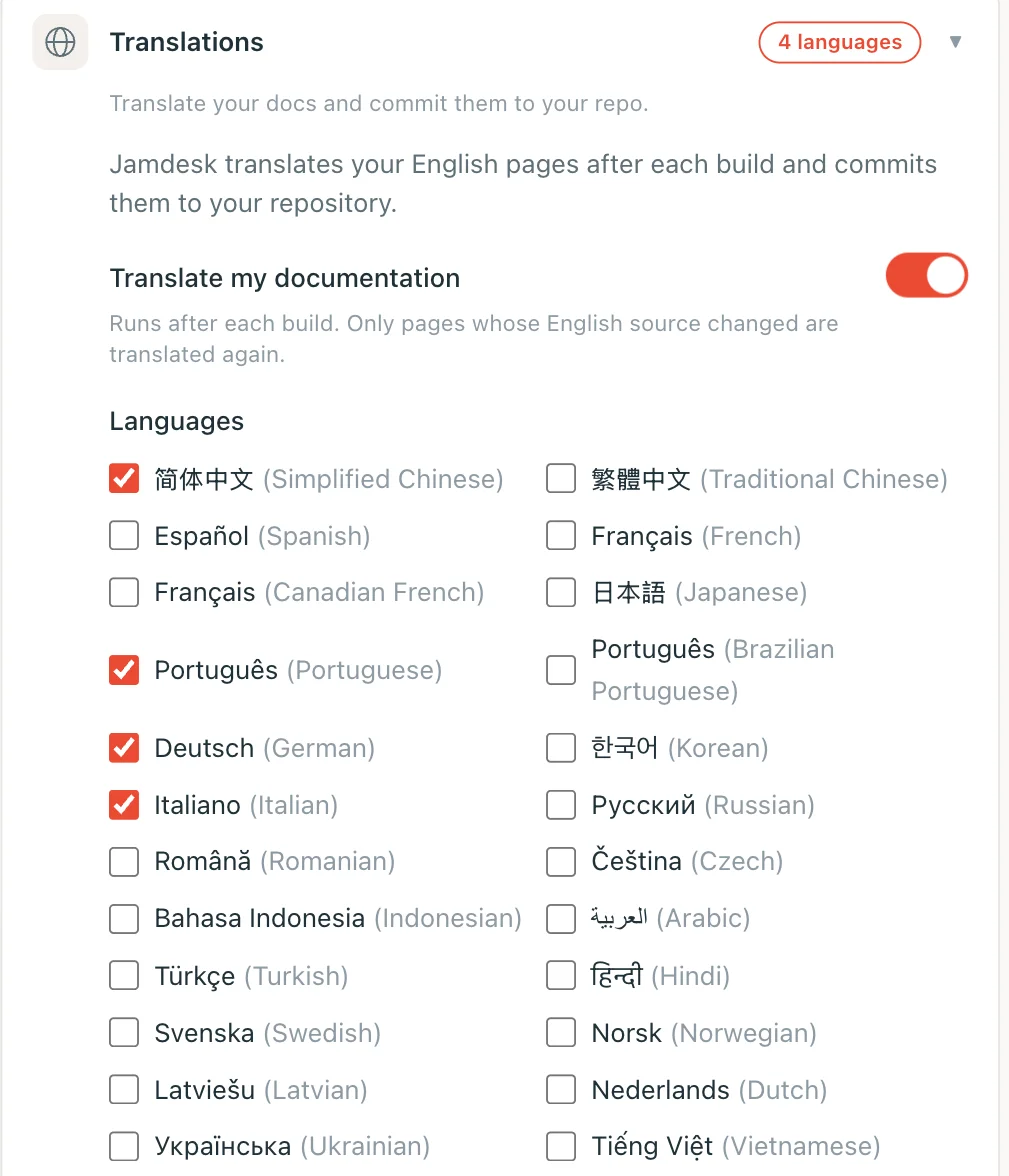
Translation runs after a build finishes. The first run translates every page and commits the translated files to your repository, where you can review them like any other commit.
Limits
Both limits are per project:
| Limit | Value |
|---|---|
| Languages per project | Up to 5 |
| Pages translated per month | 10,000 |
Only what changed
The first run translates everything. After that, Jamdesk retranslates only the pages whose English source changed, so fixing a typo on one page costs one page rather than your whole site. A site that has settled down uses a small fraction of the monthly allowance.
Translations Jamdesk leaves alone
Two kinds of translation count as written by you, and Jamdesk never replaces either of them on its own:
- Translations you already had. If your repository already contains translated pages when you switch the feature on, Jamdesk adopts them rather than overwriting them. It keeps work you wrote yourself, or paid a vendor for, exactly as it is.
- Translations you edit. Change a translated page by hand and Jamdesk notices, so your wording survives every later run.
Both are recorded the same way, and it's a permanent hold: those pages are never translated again automatically, not even after their English source changes. When the English does change, they appear in the Translations panel under Edited by hand.
Every page listed there has a Replace with AI translation button, which hands that page back to the AI. Your version is discarded and the page is translated again on your next build, so nothing changes the moment you click. That button is the only thing that lifts the hold.
This is why "Only what changed" doesn't cover these pages. A page Jamdesk translated refreshes itself when its English source changes; a page you wrote or edited waits for you to ask.
Turning a language off
Unticking a language stops Jamdesk translating into it. Nothing is deleted: the pages already committed stay in your repository, exactly as they were.