Dashboard Overview
Quick tour of the Jamdesk dashboard -- sidebar navigation, project selector, analytics, deployments, and settings.
A quick tour of the Jamdesk dashboard layout and key areas.
Main Layout
Sidebar (Left)
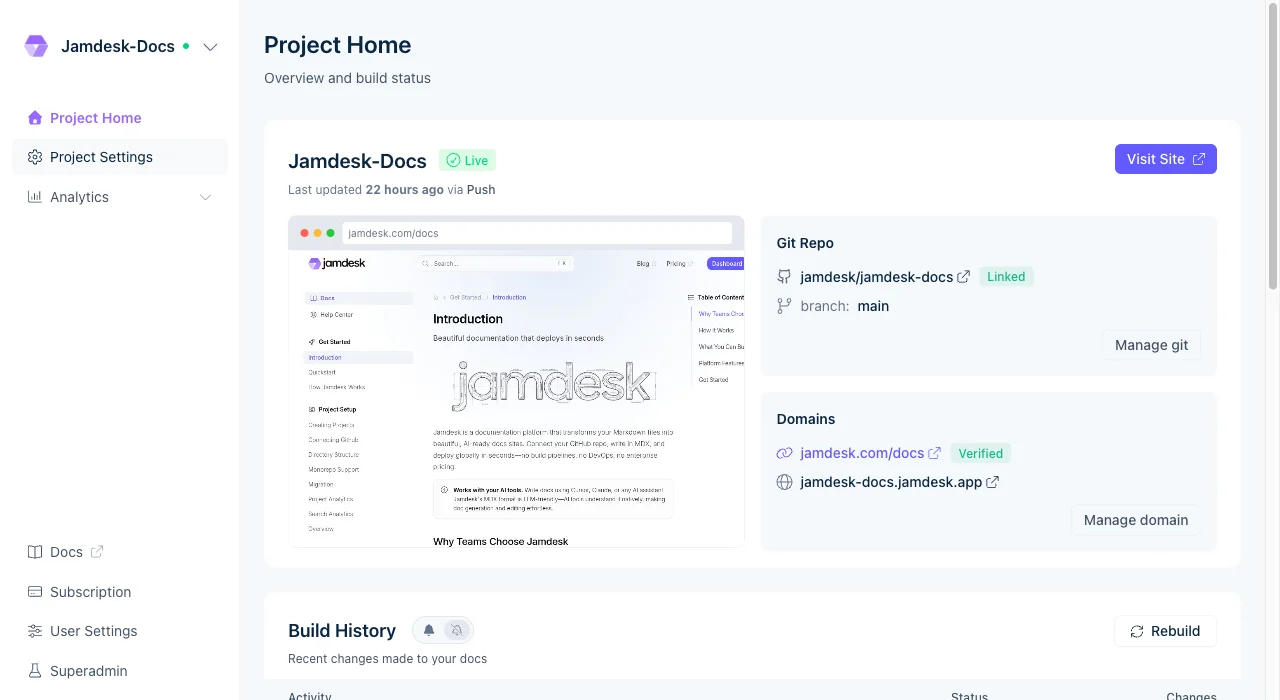
The left sidebar contains navigation for the current project:
- Project Home - Overview and build status
- Analytics - Page views, visitors, geography, and search metrics
- Settings - Project configuration, team members, integrations
- User Settings - Account preferences and profile
At the very top of the sidebar:
- Project Selector - Switch between your projects
- Theme Toggle - Switch between light and dark modes
Top Navigation
When you select a project, the top area displays:
- The active project name with an indicator
- Quick links to key sections
Main Content Area
The main area shows contextual content based on your navigation:
- Project overview and recent activity
- Analytics dashboards
- Settings panels
- Team management
Project Home
This is your landing page when you first log in:
- Recent Builds - Shows latest deployment status
- Project Status - Connection health, last updated
- Onboarding Card - Continue setup if incomplete (first time only)
- Quick Actions - Links to common tasks
Finding Your Documentation
Your live documentation URL appears in Project Settings > Display Settings:
- Projects use the format:
https://<project-id>.jamdesk.app - Custom domains can replace the default URL
- Your documentation is automatically deployed after each build
Team Members
In Settings > Members, you can:
- See all team members who can access this project
- Invite new collaborators
- Manage member permissions
- Remove members
Project Settings
Key settings available under Settings > Project:
- Display Name - The name shown in your documentation site
- Project ID - Identifier used in your documentation URL
- Connected Repository - Which GitHub repo contains your docs
- Powered by Jamdesk Badge - Show/hide branding (required on free plans)
Accessing the Help Center
You can access Help Center articles at any time:
- Click your user avatar in the sidebar
- Look for a Help or Documentation link
- Or visit this page directly
Keyboard Shortcuts
k- Open project switcher (or use top sidebar selector)?- View all keyboard shortcutscmd/ctrl + m- Toggle theme (light/dark)
Troubleshooting
I can't find a project
If a project isn't appearing in the project selector:
- Make sure you've been invited as a team member
- Check that the project hasn't been deleted
- Contact support if you think you should have access
Settings look different
Different dashboard sections may have different layouts based on your subscription plan. See Plans & Pricing for plan-specific features.