
Embed a Page
Add a "What's new?" button to your own app that opens your Jamdesk changelog in a modal, with an unread dot. One script tag, no build step.
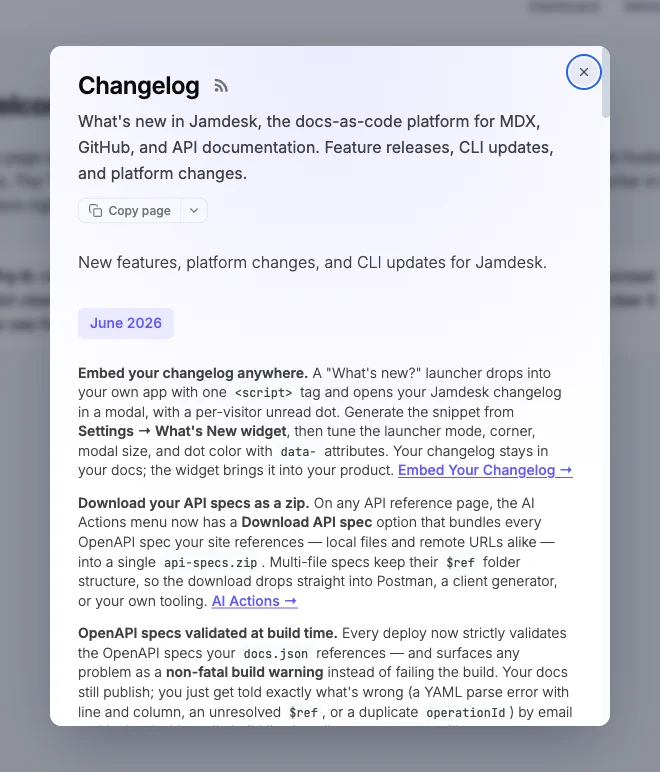
Your changelog already lives in your docs. This guide puts a "What's new?" trigger inside your own product: a button or floating launcher that opens those same entries in a modal, with a dot that marks unread updates per visitor. You paste one <script> tag; Jamdesk hosts and versions the widget.
The changelog is the common case, and the one the unread dot is built around. The same widget can open any docs page in the modal, though — point data-page wherever a focused, in-context page helps (see Point the modal at any page).
Prerequisites
- A published Jamdesk site on its
*.jamdesk.appsubdomain (the widget always loads from there, even if you also serve docs on a custom domain). - A changelog page built from
<Update>entries withrss: truein its frontmatter (see Opt in withrss: true).
Quick Start
Open your dashboard, go to Settings → What's New widget, set the page and launcher options, and copy the generated snippet. It looks like this:
<script
  src="https://acme.jamdesk.app/_jd/widget.js"
  data-base="https://acme.jamdesk.app"
  data-page="/changelog"
  data-theme="auto"
  async
></script>
Paste it into your app's HTML, before the closing </body> tag. On load it adds a floating What's new launcher in the corner. Clicking it opens your changelog in a modal; an unread dot appears when there's an entry the visitor hasn't seen.
Replace acme with your own subdomain. The dashboard card fills this in for you and keeps the data-base value pointed at the right origin, including the /docs path if you host docs under a subpath.
Pin a Version or Self-Host
The widget is open source, and the hosted snippet above always serves the latest version — the right default for most sites. When you'd rather freeze a known version or serve the file yourself, the jamdesk-widget repository offers two more ways to load it.
Pin a version with jsDelivr. Load a tagged release from the CDN and the bytes never change under you:
<script
  src="https://cdn.jsdelivr.net/gh/jamdesk/jamdesk-widget@v1.0.0/widget.js"
  data-base="https://acme.jamdesk.app"
  data-page="/changelog"
  async
></script>
Self-host. Download widget.js from the latest release and serve it from your own origin. This helps when a strict script-src policy rules out third-party scripts.
Either way, set data-base to your *.jamdesk.app origin: the hosted snippet reads it from the script's own URL, but a CDN or your own server can't. Each release publishes a Subresource Integrity hash so you can pin the exact bytes. The repository README walks through all three install paths.
Opt in with rss: true
The widget reads the newest entry from the same feed that powers your RSS, so a page only feeds the widget when its frontmatter sets rss: true:
---
title: Changelog
rss: true
---

<Update label="June 2026" date="2026-06-01">

**Spec validation at build time.** Every deploy validates the OpenAPI specs your `docs.json` references.

</Update>
Without rss: true, the widget loads but shows no entries and the launcher stays hidden. A docs page that merely demonstrates the <Update> component (with no rss: true) is correctly left out, so a demo date never lights up the dot.
Each <Update> that feeds the widget needs a date (any value Date.parse reads, like 2026-06-01), not just rss: true on the page. The date is what orders the feed and identifies the newest entry, so entries without one are skipped. If none of your entries are dated, the floating launcher stays hidden and the unread dot never appears — even with rss: true set.
Configure the Snippet
Every option is a data- attribute on the script tag. The dashboard card writes these for you, but you can also hand-edit the snippet.
| Attribute | Values | Default | Purpose |
|---|---|---|---|
data-base | Your site URL | script origin | The *.jamdesk.app origin (plus /docs if you host under a subpath). |
data-page | Path | /changelog | Any docs path to open in the modal, not just the changelog. See Point the modal at any page. |
data-theme | auto, light, dark | auto | Force the modal's color scheme, or follow the visitor's system setting. |
data-position | bottom-right, bottom-left, top-right, top-left | bottom-right | Which corner the floating launcher sits in. Ignored when data-trigger is set. |
data-label | Text | What's new | The floating launcher's button text. |
data-width | CSS length | 560px | Modal width. See Size the modal. |
data-height | CSS length | 680px | Modal height. |
data-radius | CSS length | 12px | The modal's corner radius. Lower it for squarer corners. |
data-unread | off to disable | on | Whether to show the unread dot. |
data-unread-color | Hex or CSS color name | #e5484d | The unread dot's color. |
data-button-color | Hex or CSS color name | #111 | Floating launcher background. Ignored when data-trigger is set. |
data-button-text-color | Hex or CSS color name | #fff | Floating launcher text color. |
data-trigger | CSS selector | (none) | Bind to your own element instead of the floating launcher. |
data-project | Slug | derived from data-base | The key the per-visitor "seen" state is stored under. Override only if one origin serves more than one changelog. |
Point the modal at any page
data-page opens any path on your docs site, not only /changelog. The modal renders whatever page you name, stripped of its site chrome — a single announcement, a getting-started guide, a migration note. Point it wherever a focused, in-context page helps:
<script
  src="https://acme.jamdesk.app/_jd/widget.js"
  data-base="https://acme.jamdesk.app"
  data-page="/announcements/2026-migration"
  data-unread="off"
  async
></script>
Two behaviors stay tied to your changelog feed, so keep them in mind when the page isn't a changelog:
- The unread dot tracks your changelog's newest entry, not the page in the modal. Set
data-unread="off"when the modal opens something else, or the dot lights up for changelog updates the visitor never sees there. - The floating launcher only auto-appears once your changelog has an entry (see Opt in with
rss: true). To embed a page on a site with no changelog, bind to your own element withdata-trigger— your element shows regardless.
Launcher modes
When you bind to your own element, the widget adds the unread dot to that element and never renders a floating button (so data-position and data-label no longer apply):
<script
  src="https://acme.jamdesk.app/_jd/widget.js"
  data-base="https://acme.jamdesk.app"
  data-page="/changelog"
  data-trigger="#whats-new"
  async
></script>
Size the modal
The modal opens at 560 × 680 px. Set data-width and data-height to change it. A bare number reads as pixels, or use any px, vw, vh, rem, em, or % value:
<script
  src="https://acme.jamdesk.app/_jd/widget.js"
  data-base="https://acme.jamdesk.app"
  data-page="/changelog"
  data-width="720px"
  data-height="600px"
  async
></script>
Both dimensions are capped responsively (92vw wide, 86vh tall), so a large size still fits on a phone. An unrecognized value falls back to the default. The corners default to a 12px radius; set data-radius (any CSS length) to square them off or round them further.
Style the launcher button
The floating launcher is a dark pill by default. Recolor it with data-button-color (background) and data-button-text-color (text), each a hex value or a CSS color name:
<script
  src="https://acme.jamdesk.app/_jd/widget.js"
  data-base="https://acme.jamdesk.app"
  data-page="/changelog"
  data-button-color="#4f46e5"
  data-button-text-color="#ffffff"
  async
></script>
These two attributes only style the widget's own floating button. When you bind to your own element with data-trigger, the launcher inherits that element's styling, so they have no effect.
Customize the unread dot
The unread dot is red (#e5484d) and on by default. Recolor it with data-unread-color (a hex value or a CSS color name), or turn it off with data-unread="off":
<!-- Recolor the dot -->
<script src="https://acme.jamdesk.app/_jd/widget.js" data-base="https://acme.jamdesk.app" data-unread-color="#7c3aed" async></script>

<!-- Turn the dot off -->
<script src="https://acme.jamdesk.app/_jd/widget.js" data-base="https://acme.jamdesk.app" data-unread="off" async></script>
Turning the dot off keeps the launcher and modal — it only removes the indicator. The next section explains how "seen" state is tracked.
The Unread Dot
The widget keeps an unread indicator per visitor. It compares the newest entry's id against a value in the browser's localStorage (one key per project). When they differ, a dot shows on the launcher; opening the modal marks the entry seen and clears the dot until the next update ships.
Because the state lives in localStorage, it's per-browser and per-visitor — there's no account or tracking, and clearing site data resets it. A visitor in a fresh browser sees the dot once, then not again until you publish something new.
Examples
<script
  src="https://acme.jamdesk.app/_jd/widget.js"
  data-base="https://acme.jamdesk.app"
  data-page="/changelog"
  data-position="bottom-left"
  data-unread-color="#22c55e"
  async
></script><script
src="https://acme.jamdesk.app/_jd/widget.js"
data-base="https://acme.jamdesk.app"
data-page="/changelog"
data-trigger="#whats-new"
data-width="720px"
data-height="600px"
async
></script><script
src="https://acme.jamdesk.app/_jd/widget.js"
data-base="https://acme.jamdesk.app"
data-page="/changelog"
data-label="Release notes"
data-unread="off"
async
></script>Content-Security-Policy
If your own site sends a strict Content-Security-Policy, allow your *.jamdesk.app origin in three directives, or the widget silently does nothing:
Content-Security-Policy:
  script-src  https://acme.jamdesk.app;
  frame-src   https://acme.jamdesk.app;
  connect-src https://acme.jamdesk.app;
script-srcloadswidget.js.frame-srcrenders the modal's iframe.connect-srcfetches the changelog metadata for the unread dot.
Miss one and there's no error banner — the launcher just won't appear or the modal stays blank. Check your browser console for CSP violations if the widget doesn't show.
Password-Protected Sites
Don't embed the widget if your docs site is password-protected. The unlock screen is built to be entered first-party on your *.jamdesk.app site, not inside a third-party iframe. Embedding it would ask visitors to type your site password into a frame on another origin, which is exactly the shape of a phishing prompt. Keep the widget for public changelogs.