Web Editor
Edit your Jamdesk docs in the browser: browse your connected repo, edit MDX with a live preview, and commit to GitHub to trigger a build.
The web editor lets you edit your documentation directly in the Jamdesk dashboard, without cloning the repo or touching a terminal. Open a page, edit its MDX with a live preview beside you, and commit your changes to your GitHub branch. Every commit kicks off a build automatically, so your changes go live the same way a git push would.
It's the browser-based counterpart to local preview and the VS Code extension. Reach for it when you want to make a quick edit from anywhere, or when you'd rather not clone the repo at all.
Open the Editor
Click Editor in the dashboard sidebar. The editor opens on your project's connected repository and default branch.
The editor requires a connected GitHub repository and a wide screen (desktop). On narrower windows it shows a "wider browser needed" notice, since the code and preview panes need room to sit side by side. It's available to every project owner and team member, on all plans.
The Interface
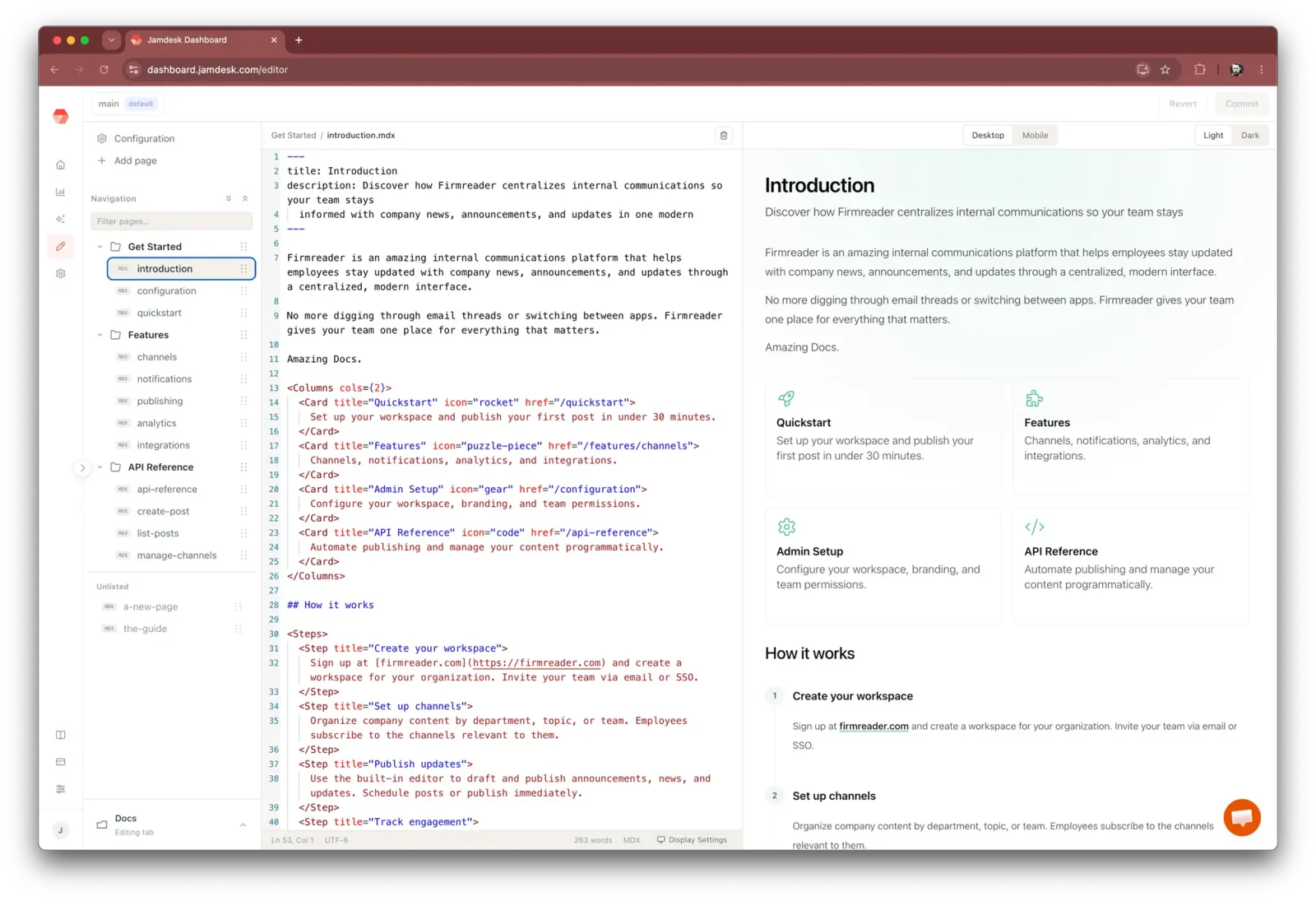
The editor has three panes:
| Pane | What it does |
|---|---|
| Navigation (left) | Your site's pages and groups, read from docs.json. Filter pages, open the Configuration (docs.json) editor, or Add page. |
| Editor (center) | An MDX code editor for the open file, with syntax highlighting and a word count. |
| Preview (right) | A live render of the page, updated as you type. Toggle Desktop / Mobile and Light / Dark to check how it looks. |
The branch you're editing is shown at the top left; switch branches with the branch picker.
Edit a Page
Click any page in the navigation to open it. Edit the MDX in the center pane and watch the preview update live. Your edits are kept as a local draft in your browser until you commit, so you can move between pages without losing work. Nothing is written to GitHub until you choose to commit.
Add a Page
Click Add page to create a new page without leaving the editor:
- Pick a starter template.
- Enter a title. The page's file name is derived from it automatically.
- Choose which navigation group it belongs to.
The new page opens as a draft. When you commit, Jamdesk writes both the new .mdx file and the docs.json navigation entry in the same commit.
Commit Changes
When you're ready to publish, commit your pending changes to GitHub:
Click Commit. The dialog lists every file you've changed (a page, docs.json, or several at once).
Type a commit message, or click Generate to have Jamdesk write one from your diff.
Jamdesk commits the changes to your current branch and immediately starts a build. Track it on the project's Builds page.
Prefer to throw the edits away instead? Revert discards the current page's unsaved changes and restores the committed version.
Working With External Changes
If someone else pushes to the same branch while you're editing, the editor notices the branch moved and flags it. When you commit, any file that changed upstream is surfaced as a three-way merge so you can reconcile the two versions. Your local edits are never discarded.
Committing from the editor is exactly like pushing from your own machine: it writes a real commit to your repo and triggers the same build pipeline. If your docs live in a subdirectory of the repo (monorepo setup), the editor reads and writes there automatically.
Requirements
| Requirement | Detail |
|---|---|
| GitHub connected | The project must have a connected repository and branch. |
| Desktop browser | A wide screen (roughly 1400px+); the editor is not available on mobile widths. |
| Access | Any project owner or member. Editing writes to your repo, so the usual write locks (for example, a past-due subscription) apply. |